
ZIPCAM GUIDE
How to compress a photo to 50 KB or 100 KB on iPhone
When an upload form asks for a smaller photo, use ZipCam as a photo size reducer with a custom target in KB. Enter 50 KB, 100 KB, or another value from 1–1023 KB, then check the output’s file size and quality before uploading.

This feature is free for now · Optional Pro purchases for other tools
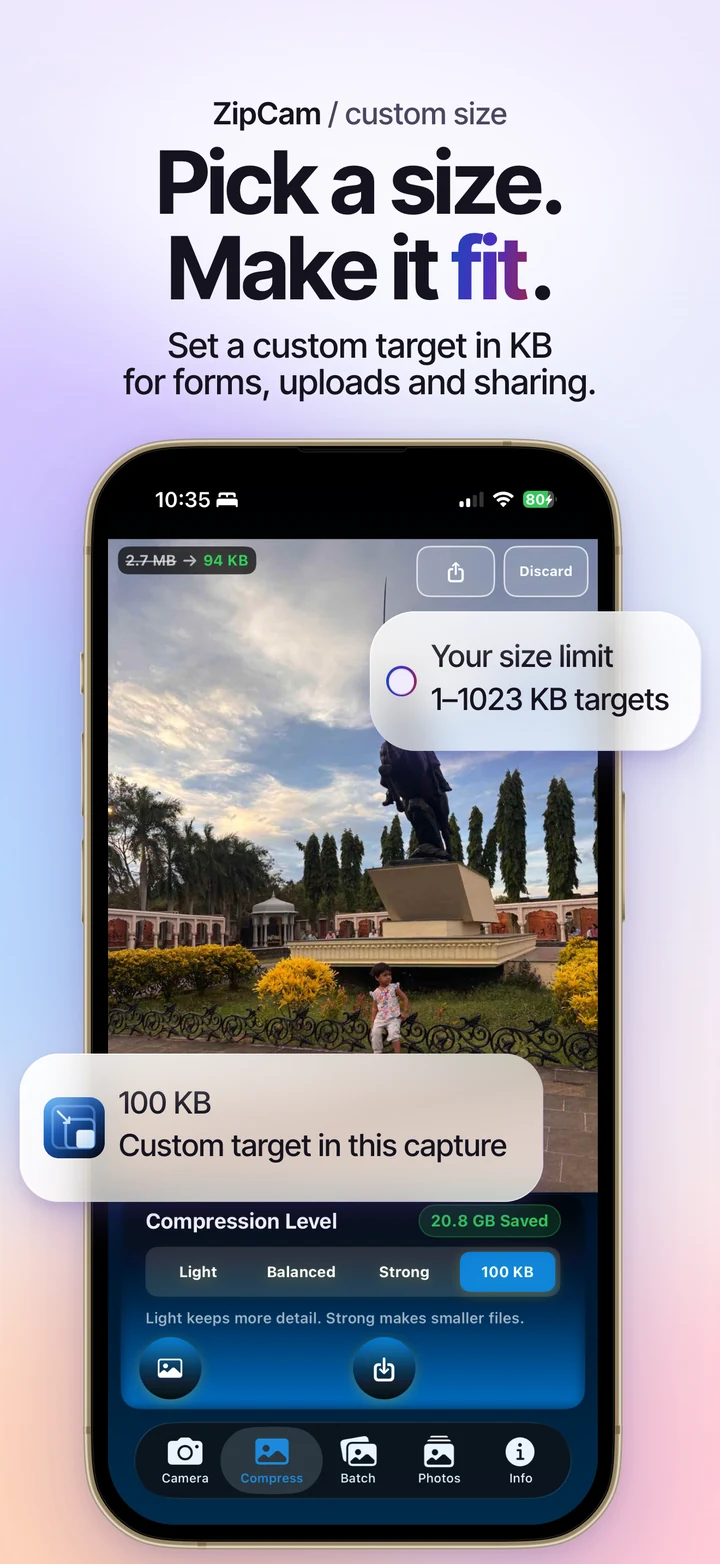
Reduce photo size in KB with a custom target
A KB target tells ZipCam the file size you want to work toward. This is useful when a job application, school form, or other upload page rejects a photo because the file is too large. It gives you a specific target instead of asking you to guess which compression preset might fit.
The target is a file-size setting, not a promise that every photo will have exactly that number of kilobytes. A result below the target may be fine for a maximum-only limit. If the form also has a minimum file size, check that the output sits inside the allowed range.
How to reduce a photo’s size in KB
- Read the upload instructions. Check the maximum file size, any minimum size, accepted format, and pixel dimensions.
- Import your photo. Open ZipCam’s Compress tab and choose the image you want to upload.
- Choose the custom KB control. Select a 50, 100, or 200 KB shortcut, or enter another target from 1–1023 KB.
- Compress and inspect. Check the displayed result and zoom in to review faces, writing, and other details that matter.
- Save or share the copy. Use the smaller result for your upload and keep the original in case you need to try different settings.
Custom size compression for photos is free for now. The same kind of photo target is available in Camera. In Batch, custom targets work with selections of three photos or fewer; a larger photo batch can use the regular presets.
Choosing between 50 KB, 100 KB, and 200 KB
Use the form’s requirement to make the choice. If it accepts files up to 100 KB, try a 100 KB target and inspect the saved copy. If the portal still reports that the file is too large, choose a slightly lower target and retry. Upload systems may count kilobytes differently.
For a 50 KB limit, pay particular attention to fine details. A small portrait may remain usable at a size that makes text in a larger image difficult to read. Where the form permits 200 KB or more, allowing more data can help preserve useful detail.
Avoid repeatedly compressing the previous compressed result. Return to the original when trying another target so you can judge the new output against the best source you have.
File size, image dimensions, and quality
File size is measured in KB or MB. Image dimensions are measured in pixels, such as 800 × 800. A small file can have the wrong dimensions for a form, while a correctly sized image can still exceed its upload limit. Check both rather than assuming a smaller file is automatically ready.
Very low targets can reduce detail or dimensions. If the output looks soft, raise the target where allowed. If your application needs a specific portrait crop as well as a smaller file, use ZipCam’s passport photo preparation tools and review the finished dimensions.
Compression runs on your device without uploading the image for processing. Make sure an iCloud-only original is downloaded before working offline.
If a form still rejects the compressed photo
First confirm you selected the saved output, not the original photo with a similar thumbnail. Then check the file’s actual size, extension, and pixel dimensions against the form’s instructions. A rejection can be caused by the format or crop even when the size is within the limit.
If the copy is as large as the original, try a target below the original file size. Some photos are already small, so recompressing them does not necessarily save space. Keep the result only if its quality and size suit your purpose.
These KB controls apply to photos. Pro video targets use MB in Batch or Folder mode, and Folder compression is a separate Pro feature. See the ZipCam Free and Pro comparison for those boundaries.
Custom size compression: common questions
Will a 100 KB target produce an exactly 100 KB photo?
Not necessarily. Check the output size shown by ZipCam and the saved file. For a form with a minimum and maximum size, confirm that the result falls inside both limits.
Why is custom size unavailable in a larger batch?
Batch custom targets are available when three photos or fewer are selected. Reduce the selection or use the regular photo compression presets for a larger batch.