ZIPCAM GUIDE
How to prepare a passport photo on iPhone
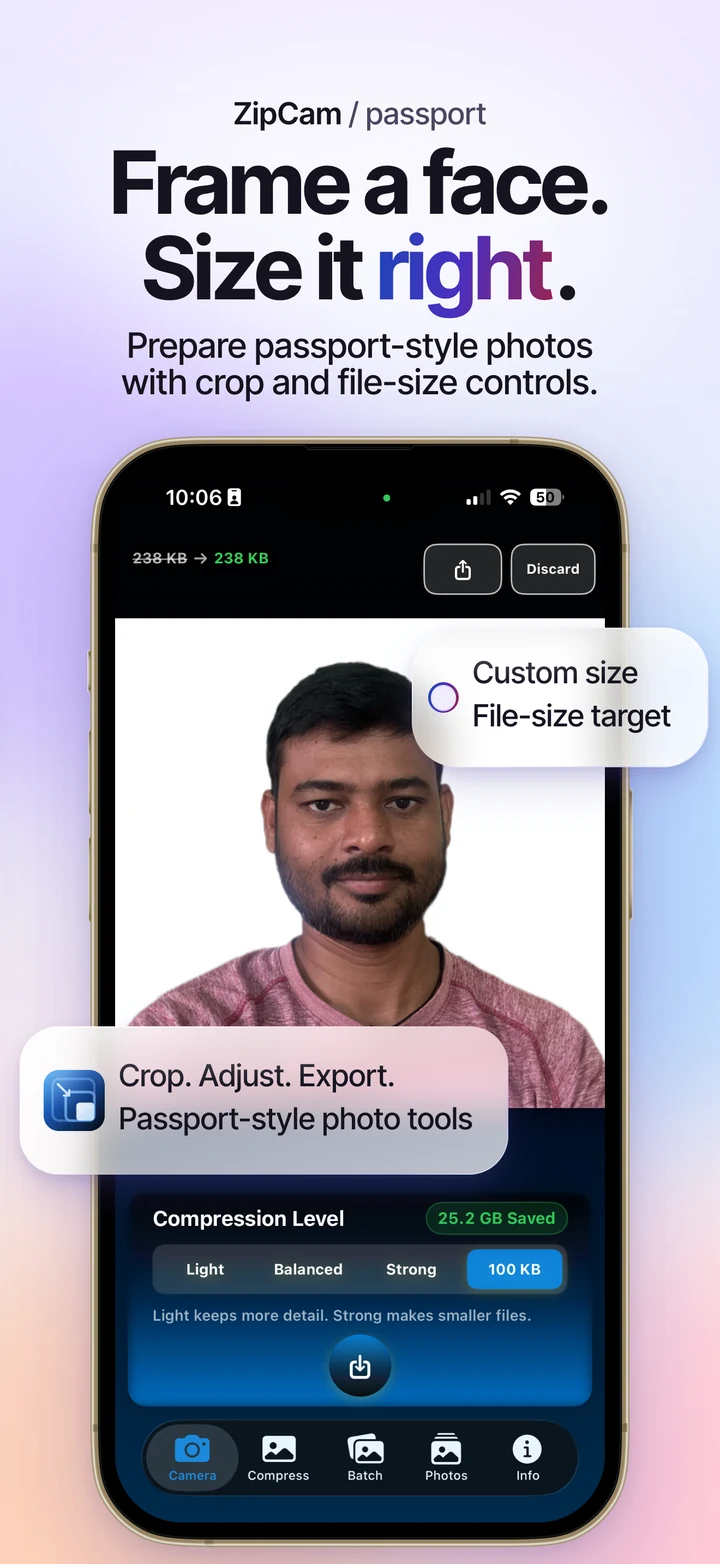
You can prepare a passport-style photo on your iPhone with ZipCam: open a photo, crop it, adjust the background where permitted, and choose output dimensions and a file-size target. Start with the application’s photo requirements so you know what to check before saving.

This feature is free for now · Optional Pro purchases for other tools
Check the passport photo requirements first
Read the instructions for your specific passport, visa, exam, or ID application. Make a note of the required dimensions, permitted file format, minimum and maximum file size, and rules for the background. An image that fits an upload limit can still fail a framing or quality check.
There is no single passport photo size that works everywhere. Printed measurements and digital pixel dimensions are different requirements. Use the values requested by your application rather than copying the settings from a screenshot or another country’s form.
Follow the issuing authority’s editing rules. For example, the U.S. Department of State’s passport photo guidance restricts digital alterations. If your application prohibits background editing, take a new photo against a suitable background instead of using that tool.
Start with a clear portrait
Use an evenly lit photo with a sharp face and enough room around the head and shoulders to crop. Follow the application’s instructions for expression, glasses, head coverings, and shadows. A blurred original will still look blurred after resizing.
Keep the original photo so you can start again if the crop is too tight. A smaller file is useful for uploading, but it is not a reason to sacrifice the detail the reviewer needs to see.
How to use ZipCam’s passport photo tools
- Open the photo. In ZipCam, use Compress to import an existing portrait, or start with Camera to take a new one.
- Open Passport mode. Move and resize the crop around your face, using the application’s framing guidance.
- Check the background. Leave it unchanged when editing is restricted. Where permitted, use the background controls and inspect the edges around hair and shoulders.
- Set the output dimensions. Enter the required pixel width and height. Review the crop ratio so the face is not stretched or cut off.
- Add a KB target if needed. Use the form’s file-size limit as your starting point, then check the saved result.
- Review and save. Look at the final preview before using the photo. Save a copy and check it against the form’s requirements before uploading.
Passport photo size: dimensions and file size
A requirement such as 600 × 600 pixels describes the image dimensions. A limit such as 100 KB describes how much data the file contains. These are examples, not recommended passport settings. Meeting one requirement does not mean the other is satisfied.
Very small KB targets can reduce image detail and may reduce output dimensions. Recheck both after processing, especially when the application specifies a minimum resolution. If the face loses detail, return to a better original or use a higher target when the form allows it.
For more help with upload limits, read the guide to compressing a photo to 50 KB or 100 KB. Confirm the file format too, because a size adjustment alone does not establish that the portal accepts the file.
Review the saved photo before you submit
Open the saved copy at a useful zoom level. Check the face, background edges, framing, pixel dimensions, and final file size. Upload that copy rather than accidentally selecting the larger original from your library.
ZipCam prepares the image; it does not certify it or guarantee government acceptance. The application’s current instructions and its upload checks decide whether a photo is suitable. Passport-style photo preparation is free for now in ZipCam; optional Pro features are separate.
Passport photo: common questions
Does ZipCam guarantee passport photo approval?
No. ZipCam offers preparation tools, but the issuing authority decides whether a photo meets its rules. Check framing, dimensions, file size, and permitted edits before submitting.
Can I prepare a passport-style photo from an existing picture?
Yes. Import a suitable portrait in Compress and open Passport mode. Use a clear source photo and follow the application’s rules, including any restrictions on background editing.