
ZIPCAM GUIDE
How to geotag photos on iPhone with a GPS map camera
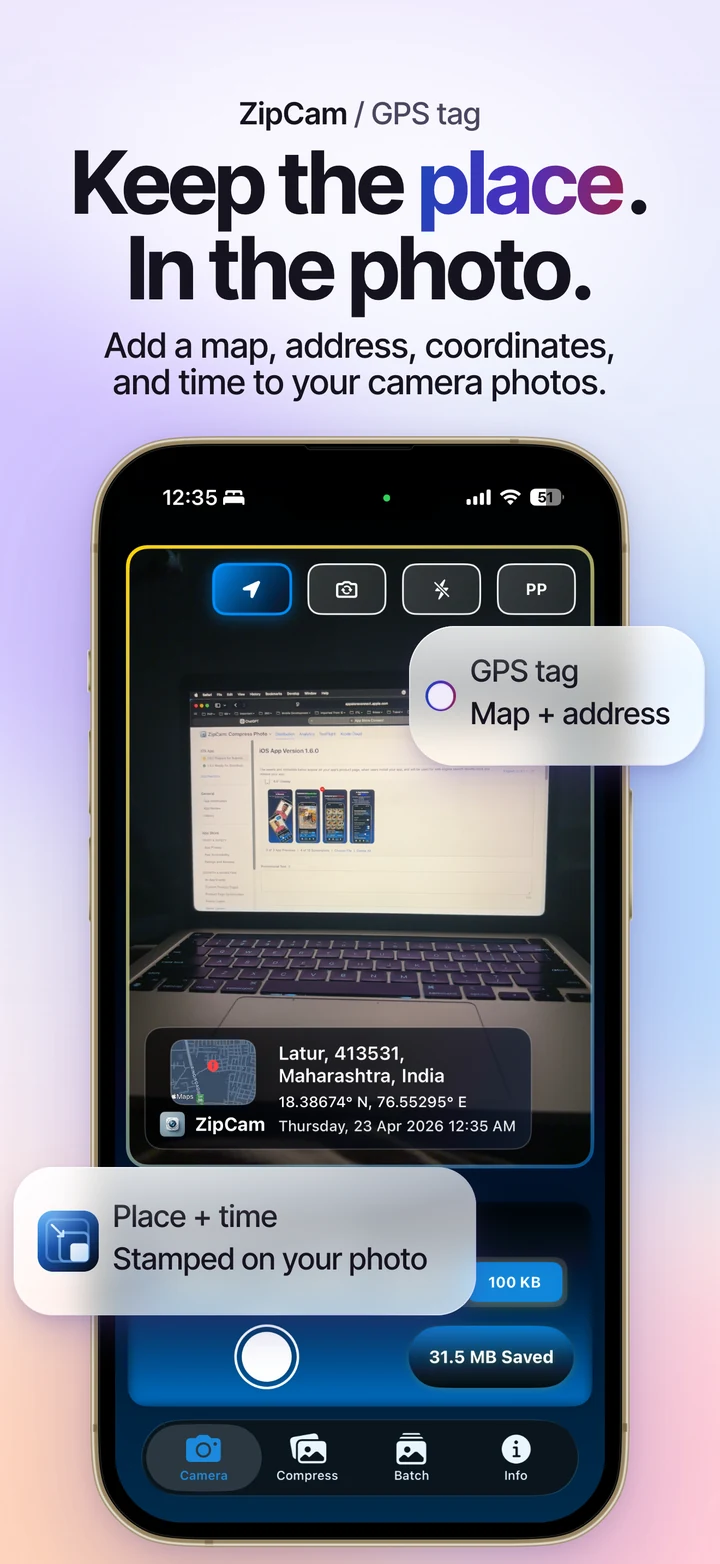
Use ZipCam as a GPS map camera on your iPhone: turn on the location stamp before taking a picture. The saved image can show the place, GPS coordinates, date and time, with an optional map. ZipCam’s geo tagging feature is free for now.


This feature is free for now · Optional Pro purchases for other tools
What is photo geotagging?
Photo geotagging connects a picture with a location. There are two useful ways that information can appear: as location metadata stored inside the file, or as a visible GPS stamp drawn onto the picture. They serve different purposes when you save and share photos.
ZipCam’s camera stamp makes the place and time readable in the image itself. That can help when a recipient needs to see where a site photo was taken without opening its file information. Location metadata is separate: Apple explains how to inspect and manage it in its guide to location metadata in Photos.
How to use ZipCam as a geo tag camera
- Open Camera. Start with a new photo inside ZipCam rather than an imported image.
- Enable the location stamp. Use the location control in the camera toolbar and allow the location access needed for the feature.
- Wait for the location. Check the place shown in the preview before capturing. If a map is enabled, wait for it to load too.
- Choose the stamp layout. Open the location stamp settings in Info to adjust coordinates, the optional map, and the date and time format.
- Capture and review. Take the photo, check that the visible details are correct and readable, then save or share the result.
The stamp is applied to new photos captured through ZipCam’s Camera flow. This guide does not describe adding a past location to an old library image. For a photo you already have, check its existing information in Photos before deciding how to share it.
Choose your GPS map and photo timestamp
Use the coordinates option when latitude and longitude are useful to the reader. Add the map snapshot when a visual reference is easier to understand, and choose a small, medium, or large map. If the map takes too much space, switch it off and keep a simpler stamp.
Date and time settings let you choose the date order and separators, weekday style, and a 12-hour or 24-hour clock. You can also adjust minute and second visibility and the stamp background opacity. Pick a layout that stays readable over the scene you are photographing.
Review the stamp at the size people will actually view the photo. A layout that looks clear in the camera preview may be harder to read after a very small compression target.
When a location-stamped photo is useful
A visible GPS stamp can give travel photos an easy-to-read place reference. It can also help organize updates from site visits or property inspections, where several photos may look similar but were taken in different places or at different times.
Treat the stamp as context for the picture. It is not a certified location record or tamper-proof evidence. Location accuracy depends on the device and available signals, and an address or map may need a network connection. Check the preview if the displayed place seems wrong.
When sharing has a file-size limit, use the custom photo compression guide to choose a smaller KB target. Inspect the stamp again after compression so its text remains useful.
Check visible location details before sharing
A stamp can reveal the location of a home, workplace, or private visit to anyone who sees the image. Decide whether those details belong in the picture before you capture and share it. Use an unstamped photo when a visible location is unnecessary.
ZipCam’s location metadata retention setting controls information attached to compressed copies. Switching it off does not erase an address, coordinates, or map already drawn into the pixels. Review the visible picture as well as its metadata.
GPS stamps are free for now; you do not need Pro for this camera feature. Map and address services may need a connection even though media compression itself happens on your device. Read the ZipCam privacy policy for permission and external-service details.
Geo tagging: common questions
Does removing location metadata remove a visible GPS stamp?
No. A visible stamp is part of the image. Turning off location metadata retention does not remove text or a map already drawn onto the photo.
Does the location stamp work without an internet connection?
Compression of locally available media works offline, but map snapshots and address lookup may need a connection. Wait for the location and any enabled map to appear before taking the photo.