
ZIPCAM GUIDE · FREE
How to compress photos on iPhone without guessing the quality
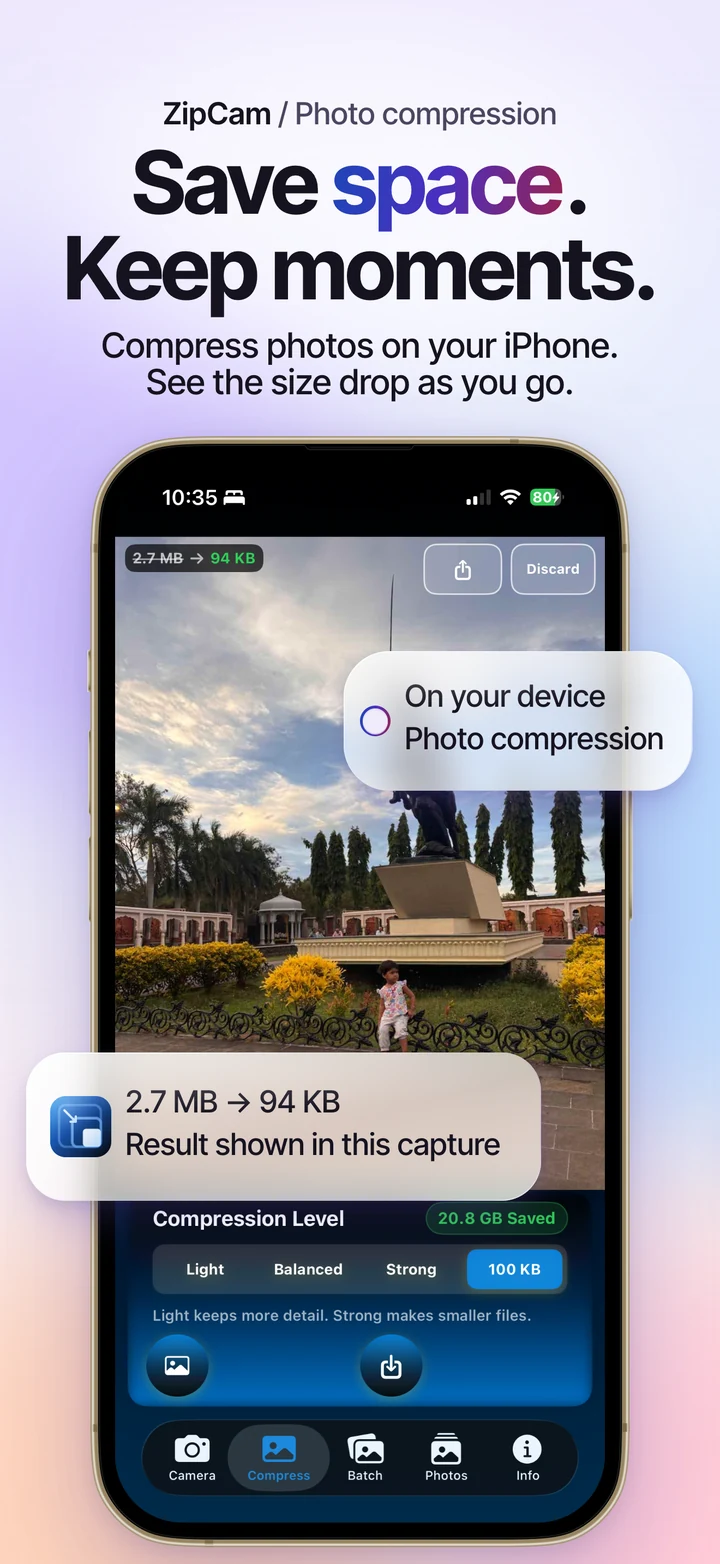
For a smaller photo to send or upload, open it in ZipCam’s Compress tab, choose Light, Balanced, or Strong, and inspect the result before saving. Photo presets are free. Start with the original each time you try a different setting.

Free · See current Pro purchase terms in the app
Free photo compression includes a required video ad. See banner ads and the 24-hour video-ad-free period.
Choose a preset for the photo’s purpose
A photo for a quick message has a different job from a portrait you want to print. Start with Light when fine detail matters. Balanced is a useful next attempt when the file is still larger than you need. Strong prioritizes smaller files and can make texture or small writing less clear.
There is no percentage reduction that applies to every image. A detailed scene and a plain background can compress differently, even with the same settings. Compare the actual file-size result with your upload limit rather than choosing a preset by its name alone.
Compress one photo, step by step
- Open Compress and import an image from Photos or Files. You can also drag a photo into the workspace.
- Select Light, Balanced, or Strong and let ZipCam process the image.
- Check the original and compressed sizes. Inspect faces, writing, and edges in the preview.
- If the result loses useful detail, return to the original and try a lighter preset.
- Save the smaller copy or share it with the app that needs it.
If the original is stored only in iCloud, download it first. Compression works on your device; ZipCam does not upload the photo to a processing server.
When an upload needs an exact size range
Presets are convenient when you simply want a lighter file. An application form may instead ask for a maximum of 50 KB or 100 KB, with separate rules for pixel dimensions and format. Use a custom target for that task and check the saved output against every requirement.
ZipCam accepts photo targets from 1–1023 KB, free for now. Read the custom photo-size guide for the steps. A target does not guarantee an exactly matching file, and making a file smaller does not establish that its portrait crop meets an application’s rules.
Check the copy before reclaiming storage
Saving a compressed photo creates another file. Keeping both versions can increase storage use. For eligible Photos originals, a successful Compress save offers Review Originals so you can compare the saved copy and explicitly choose whether to remove an original.
Keep a separate backup of anything important before considering removal. Some originals cannot be offered for review, and importing from Files does not authorize ZipCam to remove that source. The app’s reduction counter describes smaller file sizes rather than a measurement of free disk space.
Use the right workflow for more photos
For a trip or a product-photo set, use Batch photo compression instead of importing every image separately. Free batches accept up to 99 photos. The same need to inspect detail applies, particularly when a set mixes portraits with screenshots or documents.
You can also choose whether copies retain location information. Those controls affect metadata; a street sign, address, or GPS stamp already visible in the picture can still reveal a place.
Photo compression: common questions
Which preset should I try for a photo with small text?
Start with Light and inspect the smallest writing in the saved result. If it is hard to read, keep the original or use a less demanding file-size target.
Do photo presets guarantee a smaller file every time?
No. The original format, existing compression, and image content affect the result. Check the output size and keep the version that meets your quality and sharing needs.