
ZIPCAM GUIDE · FREE PHOTOS · PRO VIDEOS
How to batch compress multiple photos on iPhone
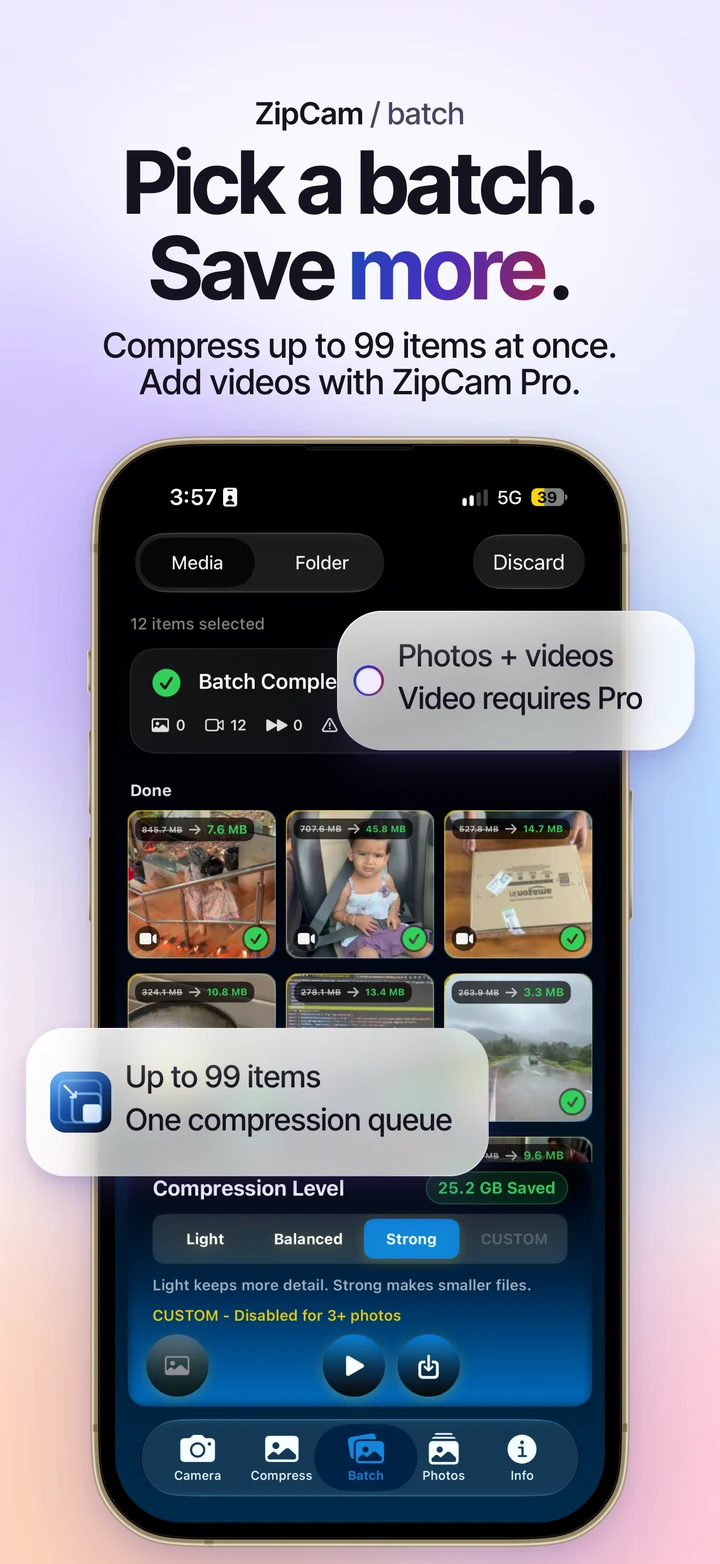
Open ZipCam’s Batch tab to compress up to 99 photos in one run for free. Choose a preset for the selection, review the results, then save the copies. Adding videos to the same workflow requires ZipCam Pro.


Free photos · Pro videos · See current Pro purchase terms in the app
Free photo batches include a required video ad before compression. See banner ads and the 24-hour video-ad-free period.
Prepare a useful photo batch
A batch works well for a group of images with a similar purpose, such as sending holiday pictures or preparing listing photos. If some images contain small text while others are ordinary snapshots, consider separate runs so each group gets an appropriate quality setting.
Download any iCloud-only originals first, and check the free-feature ad requirements above before relying on offline use. You also need enough temporary storage for processing and the resulting copies. A full device may struggle to create new files even when your eventual goal is to reduce the space used by the originals.
Compress and save multiple photos
- Open Batch and use the Media workflow to choose up to 99 photos, or drag supported photos onto the tab.
- Choose Light, Balanced, or Strong. Light keeps more detail; Strong aims for smaller files.
- Start the run and use pause or resume if you need to interrupt it.
- Open result thumbnails to inspect important images and check their size changes.
- Save the completed copies and confirm that saving succeeded before making any decision about originals.
A Pro user can include videos in the queue. Photo-only batching does not require Pro, and a batch’s custom photo target is a separate setting from video size controls.
Why Custom disappears in a larger batch
Custom photo targets are available only when three photos or fewer are selected. If your queue is larger, use one of the regular presets or reduce the selection before choosing a custom KB target. Pro does not remove this photo-target limit.
For an upload with strict file requirements, a small batch makes it easier to verify each result. The 50 KB and 100 KB photo guide explains targets from 1–1023 KB, which are free for now.
Understand completed, skipped, and failed items
The summary shows the change in file size and the percentage reduction. For example, 100 MB becoming 25 MB means 75% smaller. That is an explanation of the calculation, not a prediction for your queue or a measure of storage already reclaimed.
Open a skipped or failed item to see its explanation in the Info card. A source may already be small, unavailable, or unsuitable for the requested settings. A failed item has no usable compressed result to claim as a saving. Resolve the reason before trying it again.
Keep the originals until the copies are checked
Completed items leave the queue after a successful save; failed items remain for retry. If saving is incomplete, review the failure instead of assuming every thumbnail is safely stored. Check your chosen destination before closing the workflow.
Review Originals is optional after eligible Photos saves and requires your explicit selection and Apple’s confirmation. For a large library, Cleanup selection can help Pro users choose larger sources first. For files already arranged in folders, use Folder mode, also Pro.
Batch photo compression: common questions
Does Pro increase the 99-item Media batch limit?
The Media batch workflow accepts up to 99 items. Pro adds video support; Folder/Infinity is the separate Pro workflow for supported media arranged in folders and subfolders.
Can I use a custom KB target on 20 photos at once?
No. Custom photo targets are limited to selections of three photos or fewer. Use a regular preset for a larger photo batch or split the work into smaller selections.