
ZIPCAM GUIDE · PRO
How to compress a video on iPhone with an MB size target
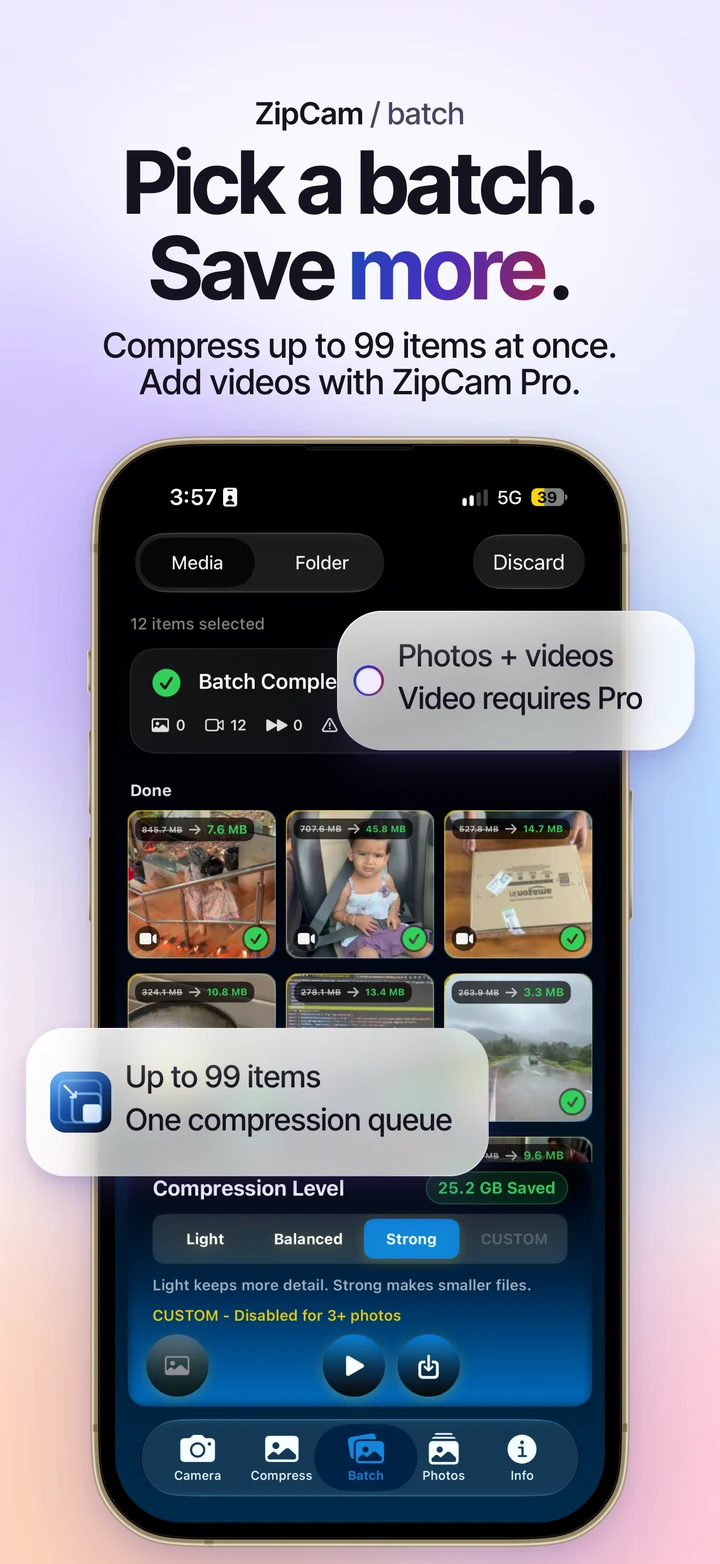
Video compression in ZipCam requires Pro. Import a video in Batch, choose a quality preset, and use the settings sheet if you need a maximum output size in MB. You can also choose to keep the original resolution, including a 4K source.

Pro · See current Pro purchase terms in the app
Start with the destination’s requirements
Before compressing a clip, check the current limit of the service or form receiving it. Different accounts and sharing methods can have different limits. A 25 MB target is useful only when it fits the actual destination; it is not a universal email or messaging allowance.
Use the original video for each new attempt. Recompressing an already compressed copy can discard more detail without giving you a fair comparison. Download an iCloud-only original first, and leave working room on the device for the output.
Set up a Pro video batch
- Open Batch and import the video with Pro active. Media batches accept up to 99 items.
- Choose a compression preset appropriate to the detail you need.
- Open the settings sheet using the slider icon.
- Enable a maximum per-video size and enter the required number of MB.
- Choose whether to preserve the original resolution, then start compression.
- Play the result, check its size and sound, and save or share the usable copy.
The target range is 1–10,000 decimal MB. The same video settings are available in Folder mode. Video compression is handled in Batch or Folder, rather than the single-photo Compress workflow.
Understand per-video targets
An MB target applies to each video, not to the total size of the queue. If you process several clips with the same target, their combined output can exceed that number. Check the total separately when you need to send several attachments together.
A longer video must fit more seconds into the same data budget. Fast motion, fine texture, and small on-screen text can become harder to see when the budget is tight. Inspect busy sections throughout the clip.
Keep 4K only when it serves the result
Preserving source resolution keeps the image dimensions, including 4K when present in the original. It does not promise the same visual quality or add detail to a lower-resolution source. A demanding size limit can still produce visible compression at those dimensions.
If the result is too soft, increase the size allowance where the destination permits it, or try without the original-resolution option. Keep the original if the smaller copy is unsuitable. Neither a preset nor a resolution toggle guarantees a useful result for every source.
If the target cannot be reached
Some combinations of duration, resolution, and size target cannot produce a usable supported output. ZipCam reports a failure rather than claiming an oversized file satisfies the requested maximum. Open the failed item’s Info card for the reason and recovery guidance.
Try a larger target or relax the resolution requirement, then retry from the original. Saving the successful copy remains separate from removing an eligible Photos original. Current Pro prices and purchase terms are shown in the app; this guide does not assume a particular plan or price.
Video compression: common questions
Does a 20 MB target limit my whole video batch to 20 MB?
No. The setting is a maximum per video. Check the combined size separately if you need to send several clips within one total allowance.
Does keeping 4K guarantee the same image quality?
No. It preserves source resolution, not every detail of the original encoding. A low MB target can reduce visual quality even when the output keeps 4K dimensions.