
ZIPCAM GUIDE · PRO
How to compress photos and videos in folders with Infinity Mode
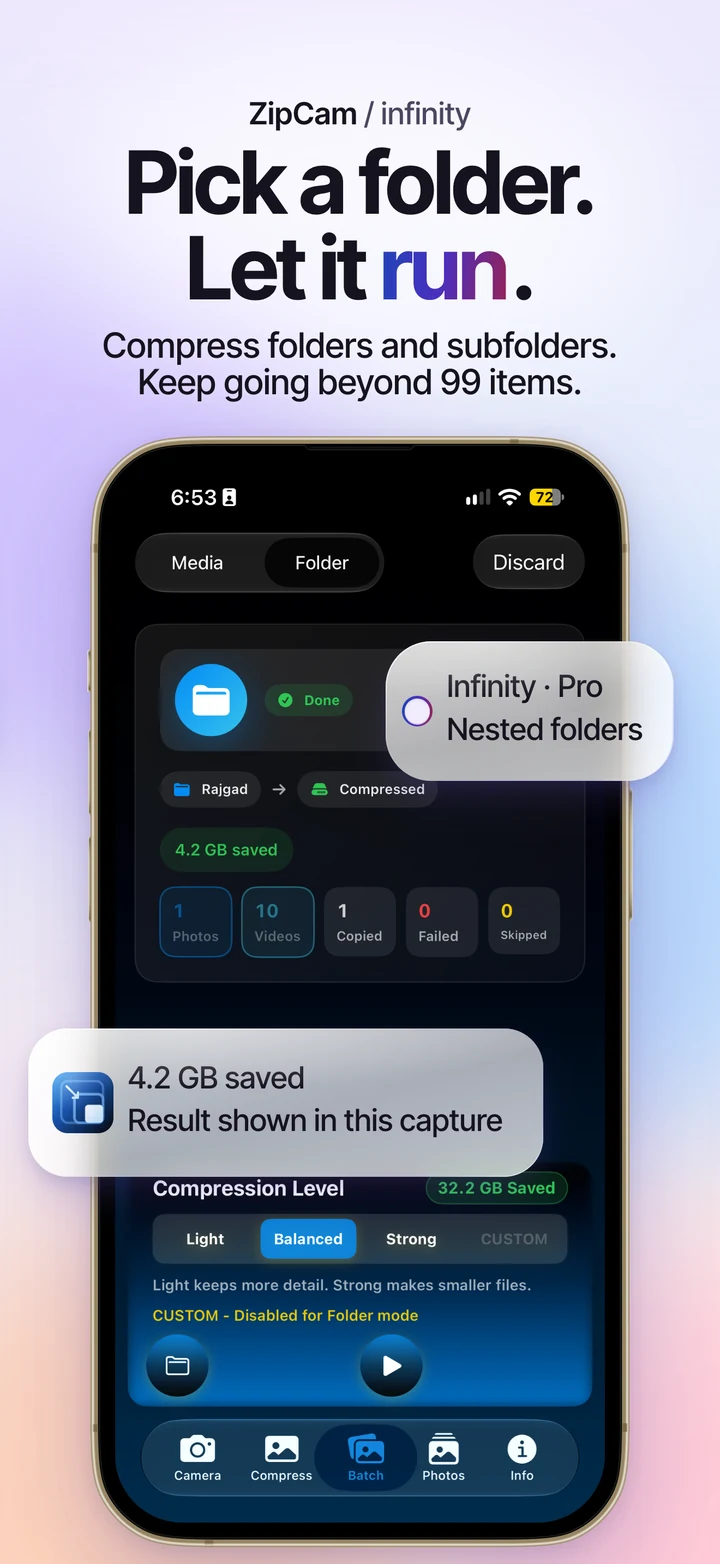
For media already organized in Files or Finder, choose Folder in ZipCam’s Batch tab. Folder/Infinity is a Pro workflow that processes supported photos and videos across subfolders and creates a separate output folder while keeping source files.


Pro · See current Pro purchase terms in the app
Use Folder for an existing file collection
Folder mode suits a project directory or a trip export where images and clips already have a useful organization. It avoids selecting the same collection a few items at a time in the Media picker. Unlike Media batches, it can work through collections beyond 99 items.
Infinity describes this folder workflow; the available device storage and the time needed to process the collection still matter. Start with a representative small folder if you have not used the settings before. Check its outputs before processing a much larger archive.
Choose a folder and start compression
- Open Batch and switch from Media to Folder with Pro active.
- Select the source folder and grant access through the system picker.
- Choose Light, Balanced, or Strong for the media.
- Open the settings sheet if videos need an MB target or original resolution, or you want to choose location retention.
- Start the run and keep track of the in-app progress.
- Open the output folder and review the summary and representative files before using them.
On Mac you can also use Shift-Command-O or drop a folder into Batch. Read the Mac guide if Finder drops are not accepted.
What happens to formats and source files
The output keeps the relative organization of supported files. Source files remain in place. A file that would not become smaller can be copied without a size reduction; its name and extension continue to match the original format.
JPEG and HEIC photos keep their formats. Lossless sources such as PNG screenshots use HEIC, or JPEG where HEIC encoding is unavailable, to make lossy compressed copies. This can change the extension, so check that the destination accepting your files supports the result. Keep originals for editing and archival use.
Photo KB targets and video MB targets differ
The Custom photo-KB control is disabled in Folder mode. Choose a regular preset for photos here. For a strict image-upload target, return to Compress or a selection of three photos or fewer in Media Batch.
Pro video MB targets remain available in Folder settings and apply per video. Preserving the original resolution is optional. A target may be unreachable for a particular clip; review failed items rather than assuming the whole folder met the same size limit.
Read the summary before moving on
Compressed files, unchanged copies, failures, and skipped items have different meanings. A completion summary is not proof that every source became smaller or that unsupported documents were converted. Inspect the reported counts and the actual output folder.
Output files consume storage alongside the sources. The reduction shown compares file sizes; it does not mean ZipCam has deleted the old directory or reclaimed that amount of disk space. Leave any source cleanup for a separate, deliberate decision after checking your copies and backups.
Folder and Infinity Mode: common questions
Does Folder mode create a ZIP archive?
No. It creates an output folder containing processed media and preserves relative folder organization. It is for reducing supported media files, not packaging a directory into a ZIP archive.
Why are some output files the same size as the originals?
When compression would not make a supported file smaller, Folder mode can retain an unchanged copy. Review copied, failed, and skipped counts separately from successfully compressed files.