
ZIPCAM GUIDE · PRO · IPHONE AND IPAD
How to compress a photo from the iPhone or iPad share sheet
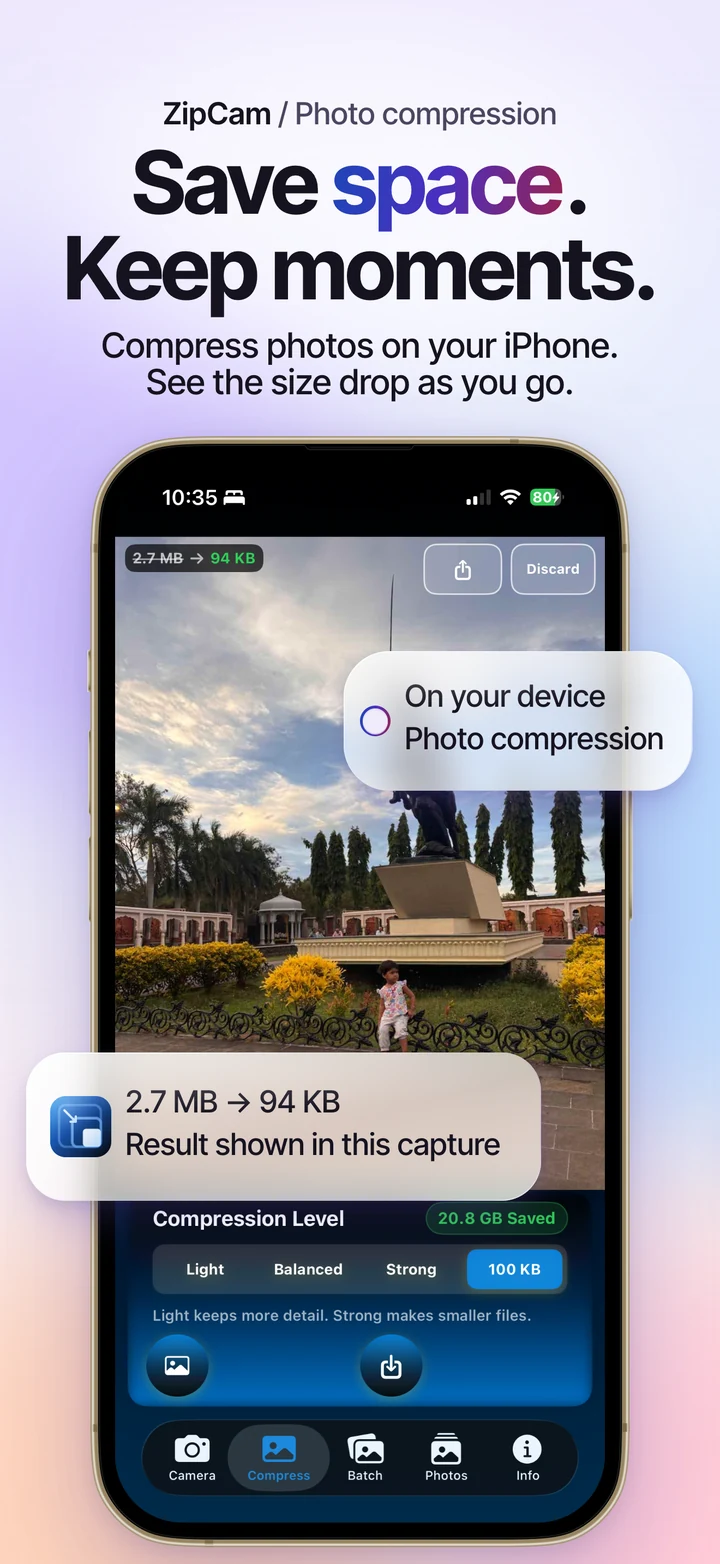
On iPhone and iPad, ZipCam Pro can open its photo-compression interface from another app’s share sheet. Share a supported image to ZipCam, choose a setting, and check the smaller result. This shortcut requires Pro; ordinary photo imports in the main app are free.


Pro · iPhone and iPad · See current Pro purchase terms in the app
Use the share sheet for one supported photo
This workflow is useful when you have already found an image in another app and want to reduce its size without starting the selection again. The source app must provide an image that ZipCam can read, rather than only a webpage link or an unsupported attachment.
The extension loads the first supported shared image. For several photos or for videos, open Batch in the main app instead. Selecting many images in the source app does not turn the extension into a batch queue.
Send the image to ZipCam
- Open a supported photo in Photos, Files, or another app that exposes image sharing.
- Open the system share sheet and find ZipCam among the available actions.
- If necessary, inspect the share sheet’s additional apps or action options.
- Select ZipCam with Pro access active, then wait for the image preview.
- Choose compression settings and inspect the size and detail before saving or sharing the copy.
The source app controls the format of the shared item. If ZipCam cannot load it, try saving the image to Files or importing it directly into the main app’s Compress tab.
Know which part requires Pro
Launching this extension requires ZipCam Pro. Free users can still open the main app and import a photo into Compress, use regular photo presets, or create a photo batch. The paid feature here is the Share Sheet entry point.
If Pro is not recognized, open ZipCam’s subscription center and use Restore Purchases with the Apple Account used for the purchase. Restoring access may require a connection. Check the available terms in the app before starting any new purchase.
Inspect the image and its metadata
A source app may provide an edited or flattened image with less metadata than the original. Check the actual shared input when capture dates or location matter. ZipCam cannot reconstruct a capture date that was absent from the supplied file.
Use the settings sheet to choose location retention for the output. Read the metadata guide for the difference between a location field and an address or GPS stamp visible in the image. Review quality against the shared input before sending the smaller copy onward.
Use the main app when the task grows
For a set of product images, Batch is easier to track than repeatedly opening the extension. It accepts up to 99 items, with photos free and videos requiring Pro. Files organized in directories belong in Pro Folder mode.
Share Sheet compression is available on iPhone and iPad. On Apple silicon Mac, import from Finder or drag files into ZipCam’s Compress or Batch workspace. Those desktop entry points are covered in the Mac guide.
Share Sheet compression: common questions
Why did only one image open after I shared several?
The Share Sheet extension loads the first supported shared image. Use Batch in the main app to process multiple photos or videos in a tracked queue.
Can I compress a photo for free without this extension?
Yes. Open ZipCam directly and import a photo into Compress, or use a photo-only Batch. The Share Sheet entry point itself requires Pro on iPhone and iPad.