
ZIPCAM GUIDE · PRO
How to find large photos and videos with ZipCam Cleanup
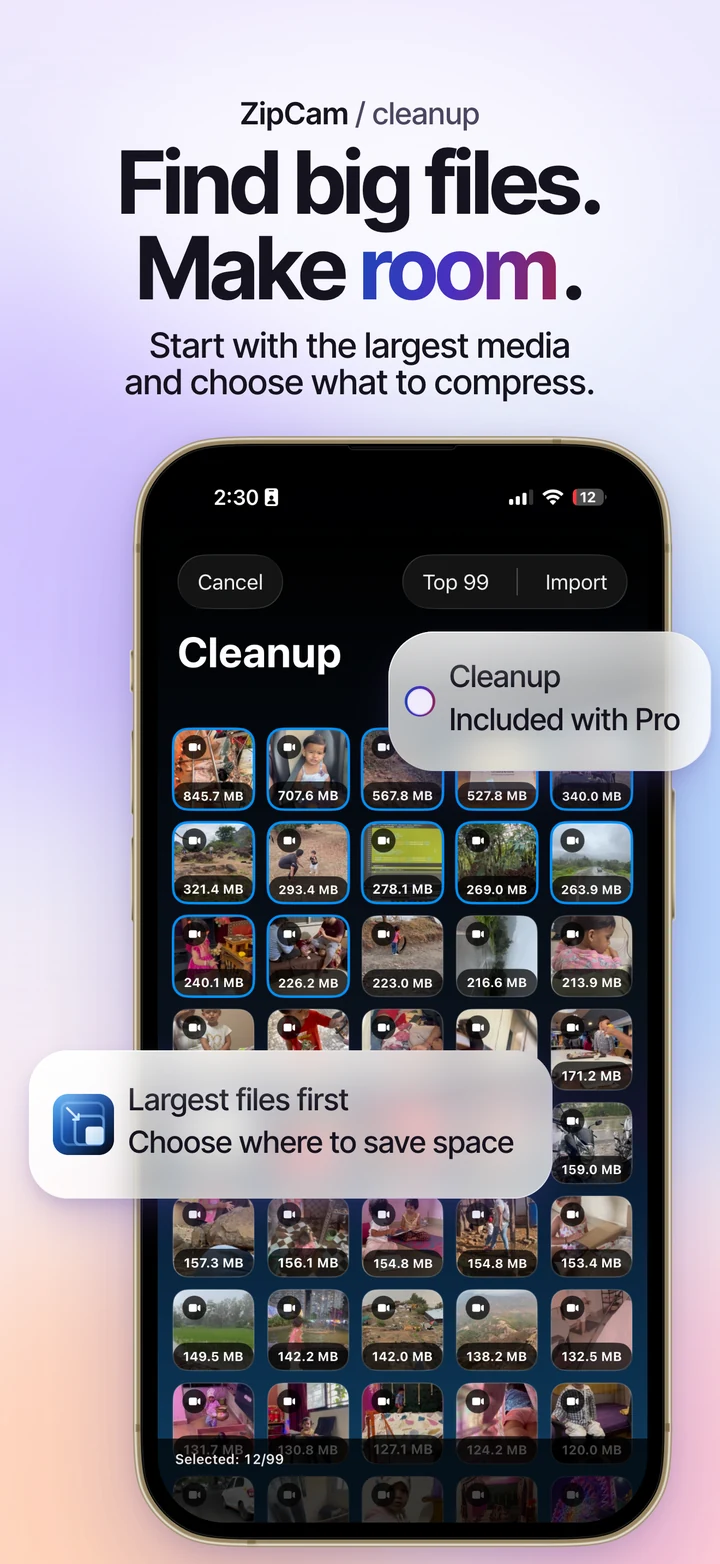
ZipCam Pro’s Cleanup selection surfaces larger photos and videos so you can choose which ones to compress first. Open Cleanup from Batch, inspect the selection, then import it into the compression queue. Choosing media does not delete it.


Pro · See current Pro purchase terms in the app
Choose where compression will help
A long video may use more data than many everyday snapshots. Starting with larger items helps you make a deliberate selection rather than repeatedly processing small files that already suit your needs. The largest item is not automatically the best one to reduce: an important recording may deserve its original quality.
Cleanup is a largest-first selection tool. It does not certify that a file is unwanted or find every duplicate. Decide what you need to retain, and keep a backup of valuable originals before considering any later removal.
Build a queue with Cleanup
- Open Batch and choose the Cleanup import option with Pro active.
- Allow the Photos access needed for the library scan.
- Let the scan complete, then review the larger items and selected thumbnails.
- Adjust the selection before importing it. Media batches accept up to 99 items.
- Choose compression settings, run the queue, and inspect the results.
- Save usable outputs and verify that saving succeeded.
If an original is only in iCloud, it may need downloading before compression. Access to only part of a library limits what the app can inspect; a scan is not evidence that an inaccessible item is absent.
Separate compression from freeing storage
A smaller copy is an additional file until you decide what to do with the original. A reduction counter compares sizes and cannot establish how much free storage the operating system now reports. Keeping both versions is a reasonable choice when you need the original for future editing.
After an eligible Batch or Compress save, Review Originals lets you compare the saved result and explicitly choose originals for removal through Apple’s confirmation. You can leave review without removing anything. Files imports and in-app-only saves do not trigger original removal.
Why an original might not be eligible
The app needs to verify the saved copy and the original before offering removal. Missing, changed, hidden, inaccessible, Live Photo, and burst items are kept when the review cannot establish eligibility. An unavailable preview is a reason to stop and investigate.
If the review says no originals are eligible, keep the saved output and check permissions or the import source. Do not assume a failed verification means the original has gone. A failed compression or unsuccessful save is also not a basis for deleting its source.
Account for iCloud and Recently Deleted
Apple explains that deleting with iCloud Photos can remove an item across devices using the same Apple Account. Deleted items normally stay in Recently Deleted for 30 days. Read Apple’s deletion and recovery guidance before deciding what to remove.
Recently Deleted and syncing can delay a change in reported available space. Check device storage after the system has had time to update. For ordinary photo queues without Cleanup selection, free Batch photo compression remains available; video compression itself requires Pro.
Cleanup and original review: common questions
Does choosing Top 99 delete those photos and videos?
No. Cleanup selection builds a compression queue. Original removal is a separate optional review after eligible copies have been successfully saved, with explicit selection and Apple’s confirmation.
Why did compression not immediately increase free storage?
The new copies occupy storage alongside the originals. Even after optional removal, Recently Deleted and iCloud syncing can delay a change in the available space reported by the device.