
ZIPCAM GUIDE · PRO
How to use ZipCam’s in-app saved-photo library
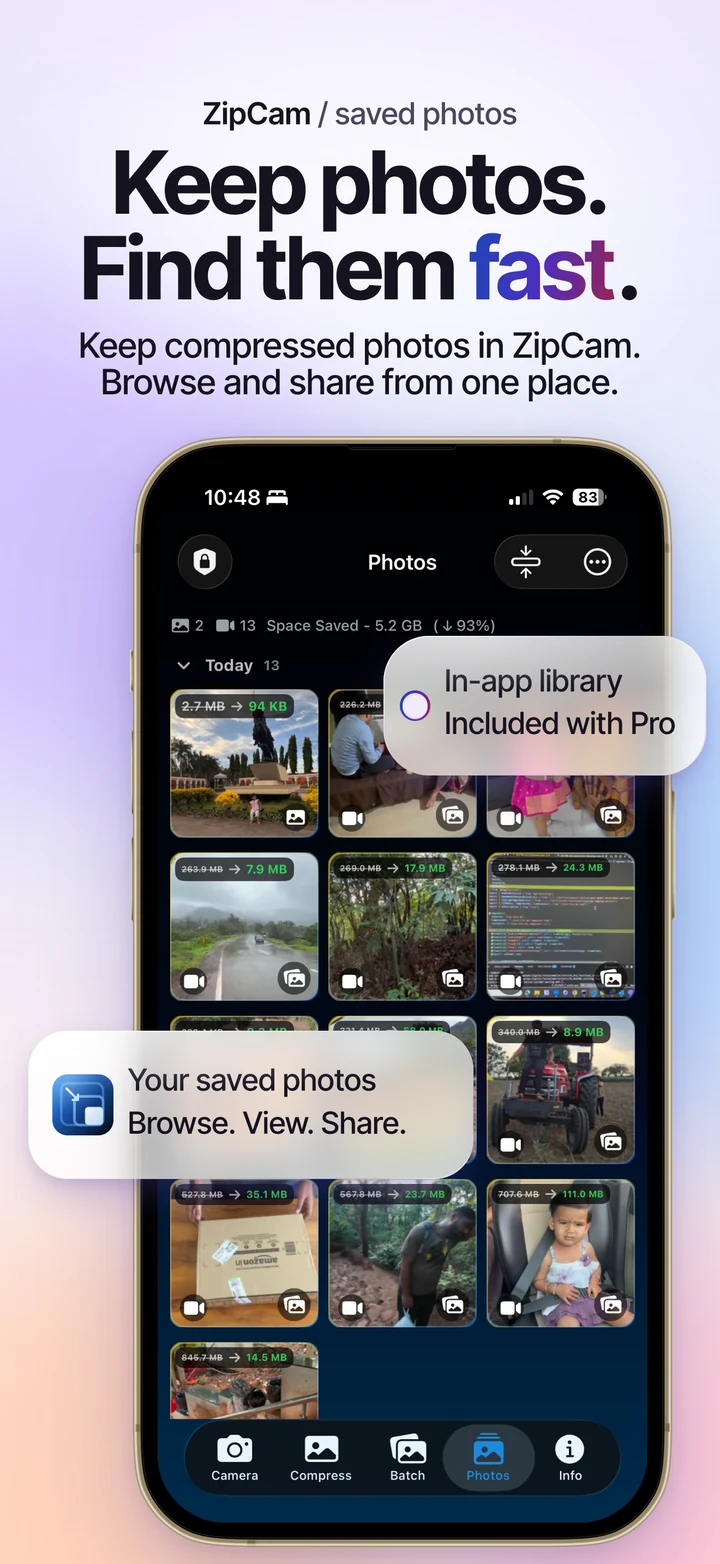
With ZipCam Pro, Save in App keeps compressed photos in ZipCam’s own library. Enable the option in Info, save a result, then open the Photos tab to browse it. This destination is separate from Apple Photos.


Pro · See current Pro purchase terms in the app
Choose a destination deliberately
Use the in-app library when you want a collection of compressed outputs available within ZipCam. Use ordinary Photos saving when you want copies alongside the rest of your Apple Photos library. A saved image should be checked in the destination you actually selected.
The Photos tab inside ZipCam is not the Apple Photos app. Enabling Save in App changes where relevant saves go; it does not move an existing Apple Photos collection into ZipCam or establish that every item has a second backup elsewhere.
Enable Save in App and check a sample
- Open Info and find Save in App in the app settings.
- Enable it with Pro active.
- Capture or import a photo, choose compression settings, and save the result.
- Open ZipCam’s Photos tab and confirm that the new copy appears.
- Open the image to inspect it, then test the export destination you plan to use.
Auto Save is a separate setting for when saving happens. Keep it off while checking a new destination if you want to inspect each result first. The Camera guide explains that choice.
Browse, filter, and export useful copies
The library supports grouping and filters so you can narrow a collection before opening individual images. Full-screen viewing helps you inspect a copy before sending it. Use the available selection and sharing actions when you need several outputs together.
You can export copies to Photos or Files using the library’s actions. Check the exported file at the destination before relying on it. On Mac, keyboard selection, Space-bar previews, drag export, and Finder actions support a file-oriented workflow.
Use biometric lock where supported
Info includes an option to require supported biometric authentication for the saved-photo library. Availability depends on the device and its biometric setup. Enable it only after confirming that authentication works on the device you use.
This lock controls access to the library within ZipCam. A copy already exported or shared is governed by its new destination. Treat library access protection and decisions about distributing photos as separate responsibilities.
Keep a copy outside the app when it matters
The in-app library is local app storage, not a promise of cloud backup or automatic cross-device sync. Export important work to a destination you back up before changing devices, removing the app, or clearing stored copies. Confirm that an exported file opens successfully.
Saving only inside ZipCam does not make a Photos original eligible for automatic removal. If reclaiming storage is your goal, read the Cleanup and original-review guide and keep the original until an independently usable copy is confirmed. See the app for current Pro prices and purchase terms.
Saved-photo library: common questions
Is ZipCam’s Photos tab my Apple Photos library?
No. It displays copies saved inside ZipCam. Use the available export actions when you want a copy in Apple Photos or Files, and verify the export at that destination.
Does the library lock protect copies I have already exported?
No. The lock controls access inside ZipCam. Exported or shared copies are accessible according to the protections and permissions of their destination.